
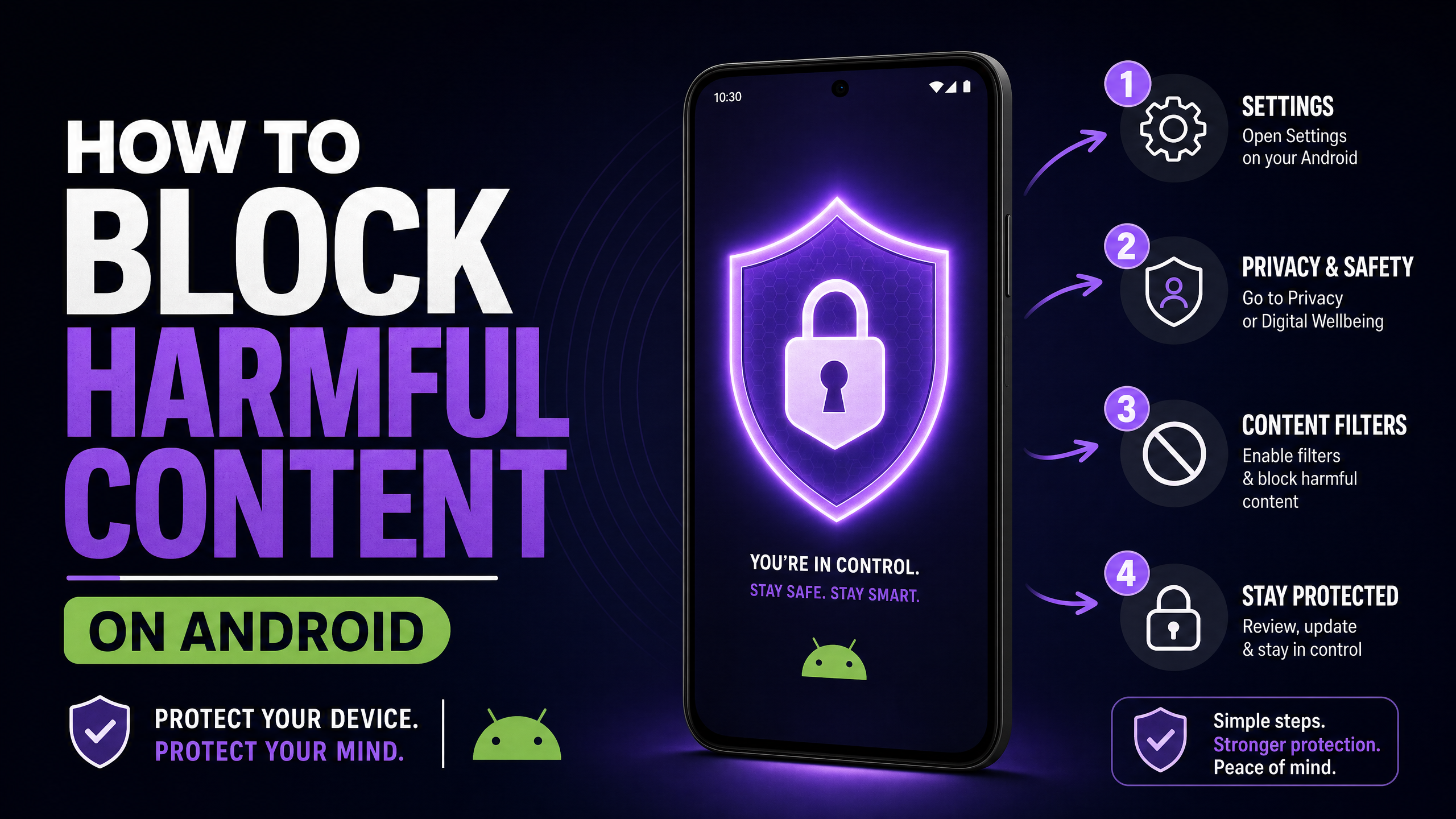
If you want to block porn and other adult content on an Android phone, you have several options to choose from. You can use Google SafeSearch for search results, Family Link for parental controls, Private DNS for website filtering, or a dedicated blocking app for more control.
The best option depends on what you want to block and how much control you need. In this guide, we’ll walk through six practical ways to block adult content on Android, explain the limitations of each method, and show you how to combine them for better protection.
Why Block Porn on Android?
People choose to block porn and other adult content on Android for different reasons. Parents may want to create a safer browsing environment for their children, while others may want to reduce distractions or have more control over what they can access online.
Blocking tools can help filter adult websites, explicit search results, and unwanted content across different parts of an Android device. While no single method blocks everything, combining a few layers can provide better protection.
- Reduce unwanted exposure: Filter adult websites and explicit search results.
- Improve online safety: Add an extra layer of protection on a child’s or shared device.
- Reduce distractions: Limit access to websites and apps you don’t want to use.
- Create better boundaries: Make it easier to stick to your own content restrictions.
6 Ways to Block Porn on Android
Method 1: Google SafeSearch
Google SafeSearch is one of the easiest ways to reduce exposure to explicit content in Google Search. When set to Filter, it attempts to remove explicit results from Google Search.
How to turn on SafeSearch
- Open the Google app on your Android phone.
- Tap your profile picture.
- Select Settings.
- Tap SafeSearch.
- Select Filter.
SafeSearch only applies to Google Search. It does not block explicit websites directly or filter content from other search engines, apps, or websites.
Best for: Quickly filtering explicit Google Search results.
Limitation: It is not a device-wide adult-content blocker.
Method 2: Google Family Link
If you are a parent managing a child’s Android device, Google Family Link provides tools for managing websites, apps, screen time, and other content settings.
For Chrome, Family Link allows parents to choose options such as Try to block explicit sites or Only allow approved sites. Parents can also manually block or allow specific websites.
How to set website restrictions
- Open the Family Link app.
- Select your child’s profile.
- Tap Controls.
- Select Google Chrome and Web.
- Choose the appropriate website restriction.
- Add specific websites to the blocked or approved list when needed.
Best for: Parents who want broader controls for a child’s Android device.
Limitation: Website filtering is primarily tied to supervised accounts and supported Google services, so it should not be treated as a complete replacement for a dedicated content blocker.
Method 3: Use Private DNS
Private DNS can help filter adult websites at the DNS level. Instead of blocking individual websites manually, you can use a family-friendly DNS provider that maintains its own filtering rules.
How DNS porn blocking works
When you request a website, your Android device sends a DNS query to the configured DNS service. The service checks the domain against its filtering rules and either allows or blocks the request. If the request is allowed, the website loads; if it is blocked, access is denied.
DNS filtering can be configured on individual devices or at the router level. Router-level filtering can apply the same DNS rules to multiple devices connected to that network.
How to set up Private DNS
On supported Android versions:
- Open Settings.
- Go to Network & internet or Connections.
- Select Private DNS.
- Choose Private DNS provider hostname.
- Enter the hostname provided by your chosen family-friendly DNS service.
- Save the setting.
Best for: Users who want a free filtering layer without installing a dedicated blocker.
Limitation: DNS filtering alone does not provide the same controls as a dedicated blocking app, and its effectiveness depends on how the device and network are configured.
Method 4: Turn on YouTube Restricted Mode
If you also want to reduce mature content on YouTube, Restricted Mode is another useful setting.
YouTube says Restricted Mode helps screen out potentially mature content. It works at the browser or device level, so you may need to enable it separately on different browsers or profiles.
How to enable Restricted Mode
- Open the YouTube app.
- Tap your profile picture.
- Open Settings.
- Go to General.
- Turn on Restricted Mode.
Best for: Reducing exposure to mature content on YouTube.
Limitation: It only applies to YouTube and is not a general adult-site blocker.
Method 5: Restrict Android Browsers and Apps
Another practical approach is to reduce the number of ways adult content can be accessed.
For example, you can remove browsers you do not use, restrict unnecessary apps, and use parental controls where appropriate. On a supervised child’s device, Family Link can also help manage app installations and website access.
You can also:
- Remove unused browsers.
- Review installed apps regularly.
- Restrict unnecessary apps on a child’s device.
- Use Google Play controls where appropriate.
- Keep SafeSearch and other content filters enabled.
Best for: Parents and users who want to reduce easy workarounds.
Limitation: Manual restrictions can take time to maintain and may not provide comprehensive website filtering.
Method 6: Use a Dedicated Porn-Blocking App
A dedicated adult-content blocker can provide more controls than individual browser or search settings.
For example, BlockerPlus offers adult-content blocking, website and keyword blocking, app blocking, uninstall protection, social-media limits, and progress tracking. Its current Google Play listing also says it can block more than one million adult websites and detect newly installed apps and browsers.
Why BlockerPlus Is a Strong Free Option
- 1M+ adult websites: Blocks a large range of known adult websites across browsers and apps.
- Uninstall protection: Helps prevent easy removal of the blocker.
- Browser protection: Can detect newly installed browsers and reduce common bypass methods.
- Social media limits: Lets users set daily usage limits for selected social platforms.
- Progress tracking: TrackerPlus helps users monitor streaks and progress.
- Free core features: The core blocking features are available without a subscription.
How to set up BlockerPlus
- Install BlockerPlus from Google Play.
- Open the app and complete the initial setup.
- Grant the permissions required for its blocking features.
- Turn on adult-content blocking.
- Configure website, keyword, or app restrictions as needed.
- Enable uninstall protection if you want additional accountability.
- If needed, enable the optional VPN-based blocking feature for additional network-level filtering.
BlockerPlus says its VPN feature is optional and is used to provide more accurate domain blocking and enforce SafeSearch on supported search engines.
Best for: Users who want dedicated adult-content blocking and additional controls in one app.
Can You Use DNS and an App-Based Porn Blocker Together?
Yes. Using DNS filtering alongside a dedicated blocker can provide multiple layers of protection on Android. DNS can filter unwanted domains, while a dedicated app may provide additional controls for apps, browsers, keywords, and device settings.
How to Make Porn Blocking Harder to Bypass
No blocking method is completely foolproof, but combining several controls can reduce easy workarounds.
Consider these steps:
- Use more than one filtering method where appropriate.
- Remove browsers you do not need.
- Keep adult-content filtering enabled in your blocker.
- Restrict unnecessary app installations on supervised devices.
- Use uninstall protection or accountability features when available.
- Keep SafeSearch enabled.
- Review your blocking settings regularly.
For a child’s device, parental controls should be configured by the parent or guardian rather than relying on a single filter.
Can Porn Blockers Be Bypassed?
Potentially, yes. No software blocker can guarantee that every form of explicit content will always be blocked.
Depending on the setup, users may attempt to access content through another browser, app, device, or different network configuration. This is why using multiple layers can be more effective than relying on a single setting.
For example, you could combine SafeSearch + DNS filtering + a dedicated blocker instead of depending on only one method.
Best Practices for Reducing Access to Adult Content
Blocking tools work best when combined with sensible device habits.
- Keep only the browsers and apps you actually need.
- Turn on SafeSearch and other available content filters.
- Use app limits if certain apps make it easier to encounter unwanted content.
- Consider accountability features if you are trying to maintain a personal restriction.
- Keep your phone away from situations where you are most likely to use it impulsively.
- Review your settings regularly to make sure your filters are still active.
Conclusion
Blocking porn and adult content on Android doesn’t have to be complicated. You can start with simple options like Google SafeSearch or Private DNS, while parents can use Family Link to manage a child’s supervised device.
If you need broader control over websites and apps, a dedicated blocker can add another layer of protection. For stronger coverage, combining SafeSearch, DNS filtering, and a dedicated blocker can help reduce access to unwanted content across different parts of your Android device.
Frequently Asked Questions
1. Are Android’s built-in settings enough to block porn?
Not always. SafeSearch, Family Link, and Private DNS each provide useful filtering, but they have limitations and may not cover every website or app.
2. Is there a free porn blocker for Android that actually works?
Yes. BlockerPlus offers adult-content blocking along with website, app, and uninstall protection features.
3. How does BlockerPlus compare with other Android porn blockers?
BlockerPlus combines adult-content blocking with app and website restrictions, uninstall protection, and accountability features in one app.
4. What is an accountability partner and why does it help?
An accountability partner is someone you trust who can help manage or monitor your blocking settings and make it harder to disable them impulsively.
5. What setup gives the strongest protection?
For broader coverage, combine SafeSearch, DNS filtering, and a dedicated blocker instead of relying on a single blocking method.

Related Articles


BlockerPlus blocks content, tracks your streak, and keeps you accountable, free on Android & iOS.
Download Free