
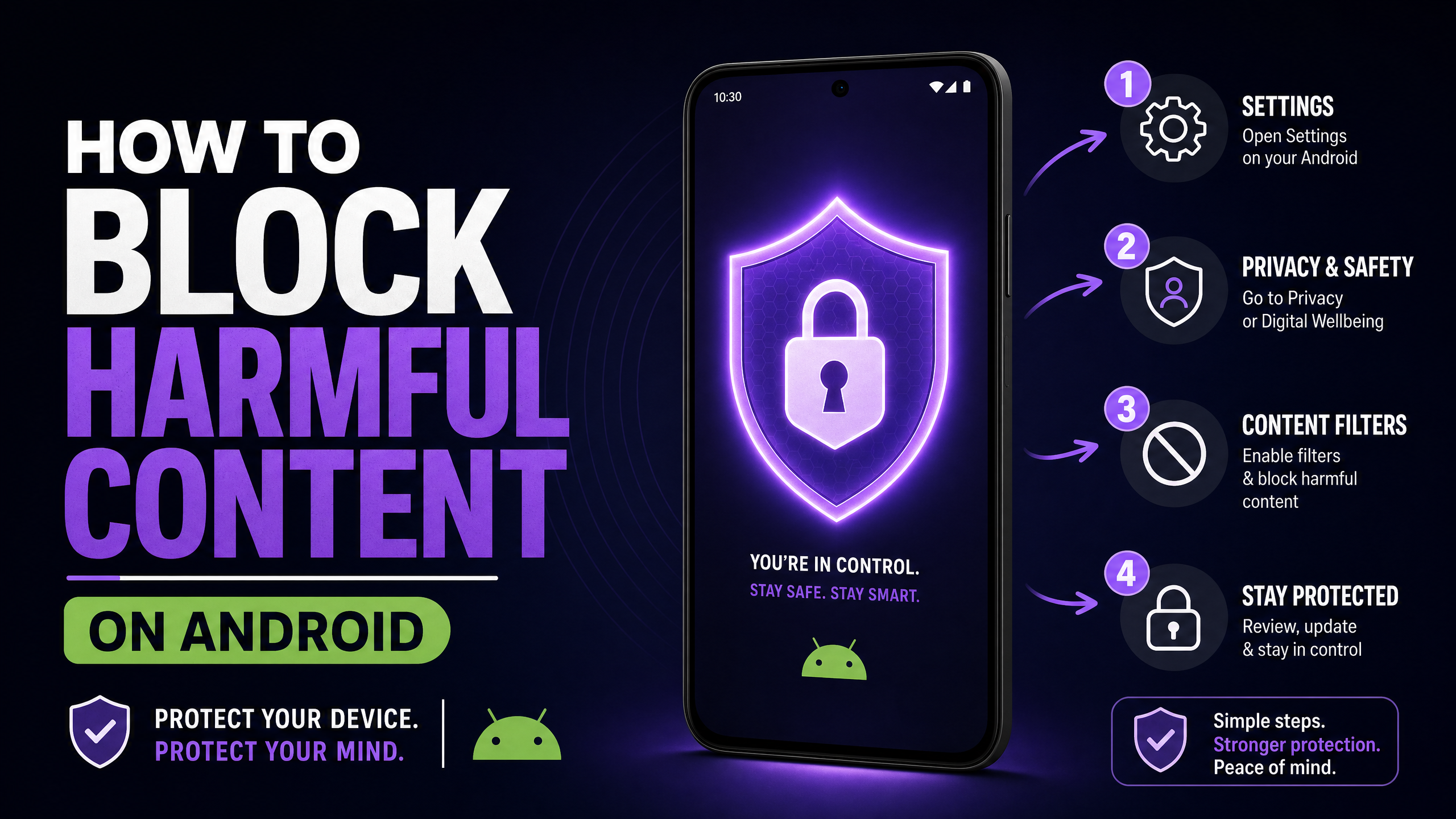
If you want to know how to block porn on iPhone, you can use Apple’s built-in Screen Time controls, DNS filtering, Content & Privacy Restrictions, or a dedicated content-blocking app. The best option depends on whether you want a quick free solution, stronger protection across networks, or more control over apps and websites.
In this guide, we’ll show you how to block adult websites step by step, how to block specific sites such as Pornhub, how to prevent changes to your settings, and which method provides the strongest protection in 2026.
4 Ways to Block Porn on iPhone
You don’t need a third-party app to get started. Apple’s built-in Screen Time controls can block adult websites and specific domains, while DNS filtering, router-level controls, and dedicated blockers can add additional layers of protection.
Method 1: Block Adult Websites Using iPhone Screen Time
For most iPhone users, Screen Time is the best place to start. It is built into iOS, costs nothing, and lets you restrict adult websites without installing another app.
What This Method Does
When you enable Limit Adult Websites, iPhone restricts access to websites identified as adult content by Apple’s web-content filtering system.
You can also add individual websites under Never Allow. This is useful when you want to block a specific website, such as Pornhub, rather than relying only on Apple’s automatic adult-content filter.
Who Is This Method Best For?
Screen Time is a good choice if:
- You want a free solution.
- You mainly need to restrict adult websites.
- You are setting up an iPhone for a child or teenager.
- You want to block specific websites manually.
- You can have a parent, partner, or trusted person control the Screen Time passcode.
How to Block Adult Websites on iPhone
- Open Settings.
- Tap Screen Time.
- Tap Content & Privacy Restrictions.
- Turn on Content & Privacy Restrictions.
- Tap App Store, Media, Web & Games.
- Tap Web Content.
- Select Limit Adult Websites.
The exact wording or location of some settings can vary between iOS versions, so check the current options on your iPhone if you see slightly different labels.
How to Block a Specific Website
If you want to block Pornhub or another specific website:
- Open Settings → Screen Time.
- Tap Content & Privacy Restrictions.
- Select App Store, Media, Web & Games.
- Tap Web Content.
- Select Limit Adult Websites.
- Scroll to Never Allow.
- Tap Add Website.
- Enter the website address you want to block.
For example, you can add: pornhub.com
This is useful when you want to block a known website even if it is not automatically caught by the adult-content filter.
How to Prevent Changes to Screen Time
Screen Time works best when the person using the phone cannot simply turn the restrictions off.
Set a Screen Time passcode and, if you are blocking porn for yourself, consider having a trusted person keep the passcode.
For a child’s iPhone, a parent or guardian can manage Screen Time and content restrictions through Apple’s Family Sharing features.
You should also consider restricting changes to important settings and limiting the ability to install or delete apps.
Restrict App Installation and Deletion
A common way around website restrictions is simply installing another browser or another app that provides access to unrestricted content.
You can use Content & Privacy Restrictions to limit app installations and deletions.
This is particularly useful when managing a child’s iPhone because it reduces the number of ways the restrictions can be bypassed.
Restrict Alternative App Distribution
On supported iPhones and in supported regions, Apple provides additional controls for alternative app marketplaces and web-based app distribution.
These controls can be found under:
Settings → Screen Time → Content & Privacy Restrictions → App Installations & Purchases
Where available, you can restrict App Marketplaces and Web.
This adds another layer of protection against installing apps or browsers outside the normal App Store process.
Use Age and Content Restrictions
Content & Privacy Restrictions can also be used to control age-rated apps and other types of content.
For a child’s device, combining these restrictions with Web Content → Limit Adult Websites gives you more control than using the website filter alone.
Limitations of Screen Time
Screen Time is an excellent starting point, but it is not a complete internet filtering system.
Its limitations include:
- Adult-content detection is not perfect.
- It does not provide the same type of network-level filtering as DNS.
- Restrictions can be changed if someone has the necessary passcodes or permissions.
- Alternative apps, browsers, VPNs, and network configurations can create additional bypass possibilities.
- It cannot guarantee that every form of explicit content will be blocked.
For stronger protection, use Screen Time together with another filtering method.
Method 2: Use DNS Filtering to Block Adult Websites
DNS filtering provides a different layer of protection.
Instead of relying only on the iPhone’s website restrictions, a DNS service checks domain requests and blocks websites that fall into restricted categories.
This makes DNS filtering useful as a second layer alongside Screen Time.
Best DNS Options for Blocking Porn
One popular option is CleanBrowsing Family Filter, which is designed to block adult and explicit websites.
Its Family Filter DNS addresses are:
- 185.228.168.168
- 185.228.169.168
Other services, such as NextDNS and Cloudflare’s family DNS, can also be used depending on the level of customization you need.
How to Set Up CleanBrowsing on iPhone Wi-Fi
To configure DNS for a Wi-Fi network:
- Open Settings.
- Tap Wi-Fi.
- Tap the info (i) button next to your connected network.
- Tap Configure DNS.
- Select Manual.
- Remove the existing DNS servers.
- Add 185.228.168.168.
- Add 185.228.169.168.
- Tap Save.
This configuration applies to the Wi-Fi network where you set it up.
What About Mobile Data?
Manual DNS settings configured for a particular Wi-Fi network do not automatically protect the iPhone when it switches to cellular data.
For broader coverage, some DNS providers offer an iOS app or configuration profile that can apply their filtering through the device.
This is important if you want filtering to continue when the phone is away from your home Wi-Fi.
DNS Filtering Limitations
DNS filtering is useful, but it should not be treated as permanent protection.
Depending on how it is configured, someone may be able to:
- Change the DNS servers.
- Switch to another Wi-Fi network.
- Remove a DNS configuration.
- Use a VPN or another network configuration.
- Disable or remove a filtering profile or app if they have sufficient permissions.
For this reason, DNS works best as part of a layered setup.
Method 3: Use a Dedicated Content Blocker
If Apple’s built-in controls are not enough, you can add a dedicated content-blocking app.
Dedicated blockers may offer features such as custom blocklists, adult-content filtering, schedules, accountability tools, and additional controls designed specifically for blocking distracting or inappropriate content.
What a Dedicated Blocker Can Do
Depending on the app and its iOS capabilities, a dedicated blocker may provide:
- Custom website blocklists
- Adult-content filtering
- Blocking schedules
- Accountability features
- Additional app restrictions
- Reports and usage controls
However, you should check the exact iOS features of any blocker before relying on it as your only protection.
iPhone Limitations
iOS places system-level restrictions on what third-party apps can control.
That means you should not assume that an iPhone blocker can automatically filter every app, browser, or type of content across the entire device.
Some blockers work primarily through Safari content-blocking features, DNS/VPN-based filtering, or other Apple-supported mechanisms.
When to Use a Dedicated Blocker
A dedicated blocker makes the most sense when you want more control than Apple’s built-in settings provide.
For the strongest setup, use it alongside Screen Time rather than replacing Screen Time completely.
Method 4: Block Adult Content at the Router Level
If you want to protect multiple devices in your home, router-level filtering can be another useful layer. Instead of configuring every phone, tablet, or computer individually, you configure filtering on the home network.
How Router-Level Filtering Works
A compatible router can use a family-safe DNS service to filter domains for devices connected to your home Wi-Fi.
This can help protect:
- iPhones
- Android phones
- Tablets
- Smart TVs
- Computers
- Other connected devices
The main advantage is that filtering happens at the network level, so multiple devices can benefit from the same configuration.
How to Set It Up
The exact steps depend on your router, but the general process is:
- Log in to your router’s administrator panel.
- Find the Internet, WAN, or DNS settings.
- Replace the default DNS servers with a family-safe DNS service.
- Save the settings.
- Restart the router if required.
- Test the filtering on a connected device.
For example, you can use a family-filtering DNS service such as CleanBrowsing.
Use BlockerPlus for Device-Level Protection
Router filtering is useful at home, but it only works while a device is connected to the protected network. If you also want protection when using mobile data or other networks, a dedicated blocker can provide an additional layer.
BlockerPlus is designed for supported devices and can help block adult content and distracting websites at the device level. It can complement router-based filtering by providing additional protection when a device is away from the home network.
Using router-level filtering together with device-level controls can provide broader coverage across different networks.
Router-Level Filtering Limitations
Router filtering only applies when the device is connected to that network.
It will not automatically protect a phone when it switches to:
- Mobile data
- Another Wi-Fi network
- A public network
- A personal hotspot
It can also be bypassed if someone has access to the router’s administrator credentials or uses another network connection.
For this reason, router filtering works best as one layer of protection rather than a standalone solution. Combining it with iPhone Screen Time or a dedicated blocker such as BlockerPlus can provide more consistent protection across different networks.
How to Block Porn on iPhone Permanently
No iPhone setting can guarantee that porn will be blocked permanently in every situation.
However, you can make access much harder by combining several layers of protection.
A strong setup can include:
- Screen Time: Enable Limit Adult Websites.
- Specific website blocking: Add sites under Never Allow.
- Passcode protection: Have a trusted person control the Screen Time passcode.
- App restrictions: Limit unnecessary app installations and deletions.
- DNS filtering: Use a family-safe DNS service.
- Router filtering: Add network-level protection at home.
- Dedicated blocker: Add one if you need additional features.
The goal is not to depend on a single setting. Layering several controls makes it harder to bypass the restrictions.
Can iPhone Block Porn Without an App?
Yes. You can block adult websites on an iPhone without installing a third-party app.
The easiest option is Apple’s built-in Screen Time feature:
Settings → Screen Time → Content & Privacy Restrictions → App Store, Media, Web & Games → Web Content → Limit Adult Websites
You can also manually add specific websites under Never Allow.
For additional protection, you can configure DNS filtering on your Wi-Fi network without installing a traditional content-blocking app.
The main disadvantage of using only built-in controls is that they provide less flexibility and protection against bypasses than a layered setup.
Screen Time vs DNS vs Dedicated Blocker vs Router Filtering
| Method | Cost | Adult Website Blocking | Specific Sites | Device-Level | Network-Level | Best For |
| Screen Time | Free | Yes | Yes | Yes | No | Most iPhone users |
| DNS Filtering | Free/Paid | Yes | Depends on provider | Yes, when configured | Yes | Additional filtering |
| Dedicated Blocker | Free/Paid | Depends on app | Usually | Depends on app | Depends on app | Advanced controls |
| Router Filtering | Free/Paid | Yes | Depends on service | No | Yes | Multiple home devices |
Which Method Should You Use?
The best way to block porn on an iPhone depends on how much control you need and who the device is for. Screen Time is enough for basic website blocking, while combining multiple layers provides stronger protection against common bypasses.
If You Want a Free and Simple Solution
Use Screen Time.
Turn on Limit Adult Websites and add specific websites under Never Allow. This is the easiest option if you simply want to restrict adult websites without installing another app.
If You’re Blocking Porn for Yourself
Use Screen Time with a passcode controlled by someone you trust.
You can also add DNS filtering for another layer of protection. Having someone else control the Screen Time passcode makes it harder to disable the restrictions yourself.
If You’re Blocking Porn on a Child’s iPhone
Use Screen Time + Content & Privacy Restrictions.
Set Limit Adult Websites, block specific websites, restrict unnecessary app installations and deletions, and keep the Screen Time passcode under the parent’s control.
For additional protection, add DNS or router-level filtering.
If You Want to Protect Multiple Devices
Use router-level filtering.
A family-safe DNS configuration on your home router can help protect iPhones, Android phones, computers, tablets, and other devices connected to the same Wi-Fi network.
Keep in mind that this protection will not automatically follow a phone when it switches to mobile data or another Wi-Fi network.
If You Want the Strongest Practical Protection
Use a layered approach rather than relying on a single blocker.
A strong setup is:
Screen Time + Content & Privacy Restrictions + DNS filtering + router-level filtering
You can also add a dedicated content blocker if you need additional features such as custom blocklists, schedules, or accountability tools.
The more important point is to prevent easy changes to the restrictions. For example, on a child’s device, the parent should control the relevant Screen Time and router credentials.
Final Verdict
Blocking porn on an iPhone is easiest with Apple’s built-in Screen Time settings. Limit Adult Websites provides a free way to restrict adult content and block specific websites through the Never Allow list. For stronger protection, combine Screen Time with Content & Privacy Restrictions, DNS filtering, or router-level controls. Parents can also use a Screen Time passcode to prevent children from changing these settings. No method is completely bypass-proof, but combining multiple layers makes adult websites significantly harder to access while keeping the iPhone practical for everyday use.
Frequently Asked Questions
1. Does iPhone Screen Time block all porn?
No. Screen Time only filters Safari and catches the big sites, but it misses places like Reddit NSFW, Twitter, and Telegram. Anyone who knows the passcode can also disable it in about 10 seconds.
2. Why should someone else set my Screen Time passcode?
If you set it yourself, you can turn the filter off during a weak moment. Handing the passcode to a trusted person removes that escape hatch, since self-control is the enemy of self-control tools.
3. Does DNS filtering work over cellular data, not just Wi-Fi?
Manual DNS only applies to the Wi-Fi network you set it on. For mobile data you need to install the CleanBrowsing or NextDNS app, which sets up a VPN profile to filter everywhere.
4. Is there a dedicated blocker app for iPhone like BlockerPlus?
BlockerPlus is Android only, so it does not run on iPhone. On iOS your strongest bet is a Screen Time based content-filter app paired with DNS filtering; Android users get BlockerPlus for near unbypassable protection.
5. What is Guided Access good for?
It locks the iPhone to approved apps only, the nuclear option that works well for a child’s phone. It is impractical for an adult, though, because it turns the phone into a dumb phone.
People are also reading:

Related Articles


BlockerPlus blocks content, tracks your streak, and keeps you accountable, free on Android & iOS.
Download Free