
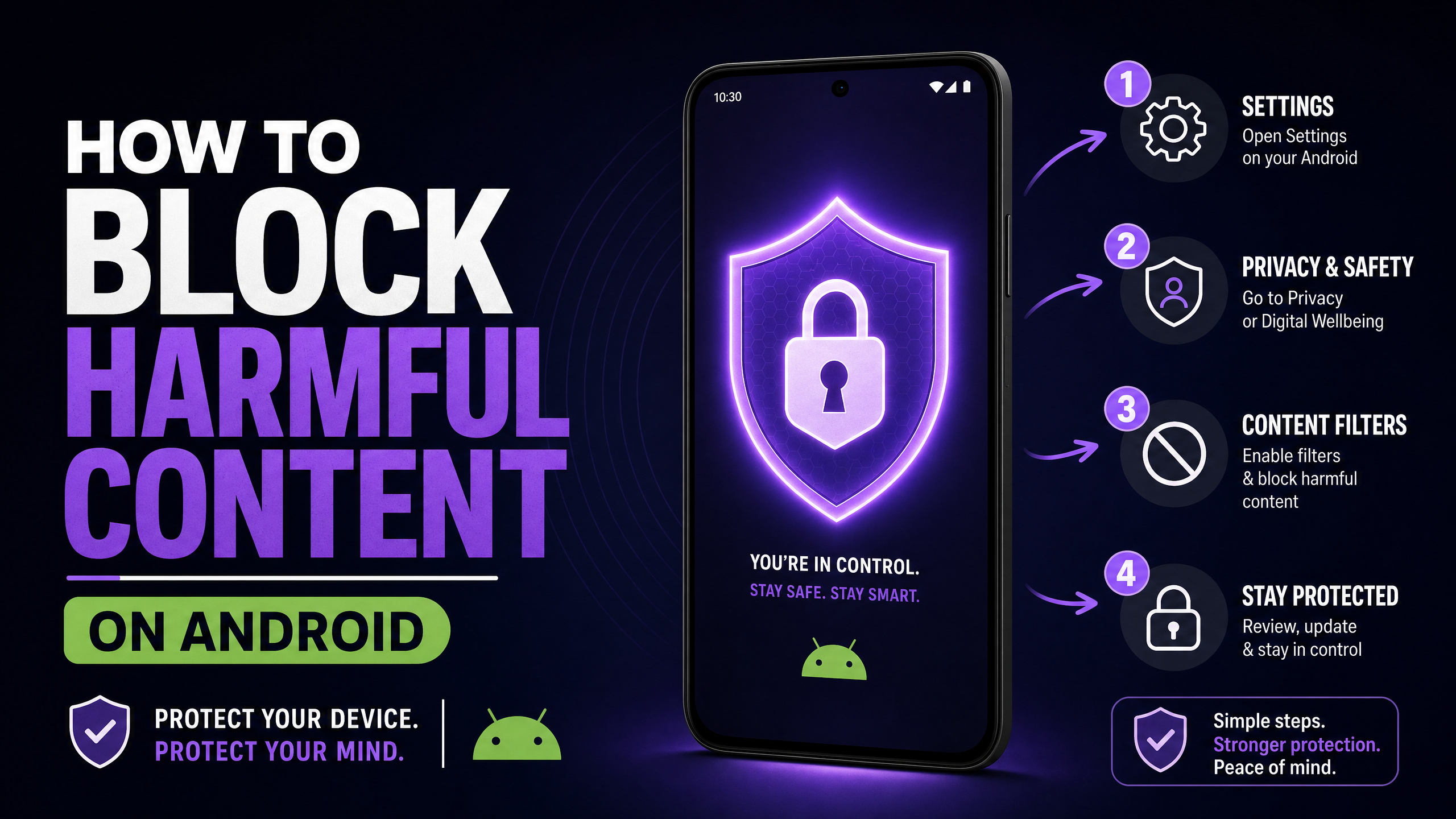
Learn how to block Xvideos permanently on Android, iPhone, Windows, Mac, and your home router using DNS filtering, parental controls, hosts files, and dedicated blocker apps.
If you want to block Xvideos on your phone, computer, or home network, there are several reliable ways to do it. You can use built-in parental controls, family-safe DNS services, system-level settings, or a dedicated content-blocking app.
The best option depends on what you are trying to protect. Parents may prefer built-in parental controls, while users who want stronger protection against adult websites may benefit from combining DNS filtering with a dedicated blocker.
Why Block Xvideos?
Before looking at how to block Xvideos, it is worth understanding why website blocking can be useful. Whether you want to reduce access to adult content, create a safer browsing environment for children, or avoid unwanted ads and redirects, adding a reliable barrier can make a meaningful difference.
Here are some of the main reasons people choose to block Xvideos and similar adult websites:
- Reduce Unwanted Adult Content: If you are trying to limit or avoid pornography, blocking Xvideos removes an easy source of explicit content and reduces the temptation to visit it.
- Improve Online Safety: Adult websites can contain aggressive advertising, pop-ups, redirects, and third-party scripts. Blocking access can reduce exposure to these potentially unwanted elements.
- Protect Privacy: Websites and advertising networks may use cookies, trackers, and other technologies to collect information about browsing activity. Blocking access can help limit exposure to this type of tracking.
- Protect Children: Children can encounter adult websites accidentally through search results, links, advertisements, or shared devices. Website and parental controls can help create a safer browsing environment.
- Build Better Digital Habits: If you are trying to spend less time on adult content, blocking websites adds friction between an impulse and access. This can make it easier to stick to your personal goals.
No single blocker is completely impossible to bypass, but combining website blocking with parental controls, DNS filtering, or a dedicated blocker can provide stronger protection across your devices.
Method 1: The Ultimate Solution (BlockerPlus)
If you’re serious about blocking Xvideos on an Android device, you need a dedicated app with family-safe DNS filtering for an extra layer of protection. Built-in settings are too easy to bypass, and DNS filtering alone can sometimes be circumvented by a determined user.
This is where BlockerPlus comes in. I built this app specifically to solve the problem of easily bypassed porn blockers by combining website blocking with family-safe DNS filtering, helping prevent access to Xvideos and other adult websites.
Here’s why BlockerPlus is the most effective method:
- Massive Blocklist: It doesn’t just block Xvideos; it blocks over 77,000 adult domains automatically.
- Hard to Bypass: BlockerPlus uses advanced Android accessibility permissions to prevent you from simply uninstalling the app or turning off the blocker in a moment of weakness.
- Keyword Blocking: It actively scans the content on your screen and blocks pages that contain explicit keywords, even if the site itself isn’t on the blocklist.
- Accountability: You can set up a PIN code that only a trusted friend or partner knows, making it impossible for you to disable the protection yourself.
If you’re an Android user, this is the fastest and most reliable way to get Xvideos off your device permanently.
Method 2: DNS Filtering (Free & Network-Wide)
If you want to block Xvideos on every device in your house, including smart TVs, laptops, and your kids’ tablets, DNS filtering is the way to go.
Think of DNS (Domain Name System) as the phonebook of the internet. When you type “xvideos.com” into your browser, your DNS provider looks up the IP address for that site. A family-safe DNS provider simply refuses to look up the address for adult sites, effectively blocking them.
Here’s how to set it up using CleanBrowsing (one of the best free options):
On Your Home Router (Blocks All Devices)
- Log into your router’s admin panel (usually by typing 192.168.1.1 or 10.0.0.1 into your browser).
- Find the DNS Settings (often under “Network,” “Internet,” or “Advanced”).
- Change the Primary and Secondary DNS servers to CleanBrowsing’s Family Filter:
- Primary: 185.228.168.168
- Secondary: 185.228.169.168
- Save your changes and restart the router.
On an Android Device
- Go to Settings > Network & Internet (or Connections).
- Tap on Private DNS.
- Select Private DNS provider hostname.
- Enter: family-filter-dns.cleanbrowsing.org
- Tap Save.
Method 3: Built-in Parental Controls
If you’re a parent trying to protect your child’s device, both Apple and Google offer built-in tools that can block Xvideos and other explicit content.
For iPhone/iPad (Screen Time)
Apple’s Screen Time feature is surprisingly robust for blocking adult content.
- Go to Settings > Screen Time.
- Tap Content & Privacy Restrictions and turn it on.
- Tap Content Restrictions > Web Content.
- Select Limit Adult Websites.
- Under “Never Allow,” tap Add Website and type xvideos.com.
Make sure you set a Screen Time Passcode that your child doesn’t know, or they can easily turn this off.
For Android (Google Family Link)
Google Family Link allows you to manage your child’s device remotely.
- Open the Family Link app on your (the parent’s) device.
- Select your child’s account.
- Tap Controls > Content restrictions > Google Chrome.
- Select Try to block explicit sites.
- You can also go to Manage sites > Blocked and manually add xvideos.com.
Method 4: The Hosts File (For Windows & Mac)
If you want to block Xvideos on a desktop computer without installing any software, you can edit the system’s “hosts” file. This tells your computer to redirect any requests for Xvideos to a dead end.
On Windows
- Click the Start menu, type Notepad, right-click it, and select Run as administrator.
- Go to File > Open.
- Navigate to C:\Windows\System32\drivers\etc.
- Change the file type dropdown in the bottom right from “Text Documents” to “All Files”.
- Open the file named hosts.
- At the very bottom of the file, add this line: 127.0.0.1 xvideos.com
- Add another line: 127.0.0.1 www.xvideos.com
- Save the file and restart your browser.
On Mac
- Open the Terminal app.
- Type sudo nano /etc/hosts and press Enter.
- Enter your Mac administrator password.
- Use the arrow keys to navigate to the bottom of the file.
- Add the lines: 127.0.0.1 xvideos.com and 127.0.0.1 www.xvideos.com.
- Press Ctrl+O, then Enter to save.
- Press Ctrl+X to exit.
- Flush your DNS cache by typing: sudo dscacheutil -flushcache.
How to Block Xvideos on Your Router
If you want to block Xvideos across multiple devices connected to your home Wi-Fi, router-level DNS filtering is one of the most practical options.
This can help protect phones, laptops, tablets, smart TVs, and other compatible devices using the same network.
How to Set Up DNS Filtering on Your Router
The exact steps vary depending on your router, but the general process is:
- Open your router’s administration page.
- Sign in with your router administrator credentials.
- Find Internet, Network, or DNS Settings.
- Locate the DNS server settings.
- Replace the current DNS servers with a family-safe DNS service.
- Save the changes.
- Restart the router if required.
- Connect a device to the Wi-Fi network and test Xvideos.
A family-safe DNS provider can automatically filter websites that fall into adult-content categories, so you do not have to manually block every website.
Limitations of Router-Level Blocking
Router-level filtering generally applies only to devices using that network. If a phone switches to mobile data, connects to another Wi-Fi network, or uses a VPN, the router’s DNS filtering may no longer apply.
For stronger protection, combine router-level DNS filtering with device-level parental controls or a dedicated blocker.
Can Xvideos Blocking Be Bypassed?
Yes. Most website-blocking methods can potentially be bypassed if someone has enough access to the device or network.
Common ways blocking may be bypassed include:
- Changing DNS settings
- Using a VPN
- Using a proxy
- Switching from Wi-Fi to mobile data
- Connecting to another Wi-Fi network
- Installing another browser
- Disabling or uninstalling a blocking app
- Modifying the hosts file
- Using another device
This is why it is better to use multiple layers of protection when stronger restrictions are required.
For example, parents can combine parental controls with DNS filtering and restrictions on app installations. Individuals can combine a dedicated blocker with DNS filtering and password-protected settings.
Which Method Should You Use?
The best method depends on your device and your specific goal.
| Method | Best For | Coverage | Setup | Main Limitation |
|---|---|---|---|---|
| BlockerPlus | Android users | Individual device | Easy | Primarily device-level |
| DNS Filtering | Multiple devices | Network-wide | Moderate | Can be bypassed |
| Screen Time | iPhone and iPad | Individual device | Easy | Requires protected settings |
| Family Link | Children’s Android devices | Individual device | Easy | Designed mainly for parental controls |
| Hosts File | Windows and Mac | Individual computer | Moderate | Manual and easier to modify |
If You Use Android
A dedicated blocker such as BlockerPlus is a convenient option if you want to block Xvideos and other adult websites from one device.
If You Use iPhone or iPad
Apple’s Screen Time and Web Content restrictions provide a straightforward way to restrict adult websites.
If You Are Protecting a Child
Use Family Link on Android or Screen Time on Apple devices. Protect the parental-control settings with a password or passcode.
If You Want to Protect Your Whole Home
Use family-safe DNS filtering on your router. This can apply filtering to multiple devices connected to your home network.
If You Want Stronger Protection
Combine device-level blocking with network-level DNS filtering. Using multiple layers makes it harder for a website to become accessible if one method is bypassed.
Conclusion
Blocking Xvideos is straightforward on Android, iPhone, Windows, Mac, and your home network using parental controls, DNS filtering, hosts files, or dedicated blocker apps. Each method has different strengths and limitations, so the best choice depends on your device and requirements. For stronger protection, consider combining multiple methods instead of relying on one.
Android users can use a dedicated blocker like BlockerPlus, while families can combine parental controls with router-level DNS filtering. Although no method is completely impossible to bypass, layered protection can make unwanted access significantly more difficult and help create a safer, more controlled browsing environment.
Frequently Asked Questions
1. Can Xvideos give my phone a virus?
Visiting Xvideos does not automatically infect your phone, but malicious ads, redirects, or unsafe downloads can create security risks.
2. How do I block Xvideos on my child’s phone?
Use Screen Time on iPhone or Family Link on Android, and protect the settings with a password or PIN.
3. Can I block Xvideos without my partner knowing?
Technically, some device or network settings can block websites, but secretly restricting another adult’s device can raise privacy and trust concerns.
4. Can I block Xvideos without installing an app?
Yes. You can use DNS filtering, router settings, parental controls, or the hosts file without installing an app.
5. What is the best way to block Xvideos?
For Android, a dedicated blocker can be convenient; for multiple devices, DNS filtering is useful. Combining both provides stronger protection.
People are also reading:

Related Articles



BlockerPlus blocks content, tracks your streak, and keeps you accountable, free on Android & iOS.
Download Free